Summer’s here, and so is the next round of updates for the industry’s leading construction management software. This quarter, we focused on cutting manual work out of the places contractors feel it most: pricing a quote, seeing the jobsite clearly, getting crews in the right place, and keeping tabs on equipment. Here’s a closer look at the stories we think matter most to your team.
HeavyBid: HCSS AI Extracted Prices from Vendor Quotes
Reviewing and applying vendor quotes to your estimates used to mean digging through documents line by line and manually entering them into your bid. Now, upload a vendor quote document to HeavyBid and HCSS AI (formerly Copilot) will automatically pull the pricing data and map it to the right resource line items in your Quote Folder. You always stay in control. Review, confirm, or adjust any suggested price before it’s added, while a clear AI indicator icon marks every automated number so you always know its source.
We also cleaned up the handoff from HeavyBid to HeavyJob. Estimators can now assign cost codes to individual resources, pull them out of base activities with custom descriptions, and adjust export details to align perfectly with the accounting system. Project managers and accountants get a clean, field-ready budget every time, after the handoff.
What this means for you: Less time on data entry, and a faster path from quote to bid.
HeavyBid: Revert an Estimate to Any Prior State with Flashback
Made a round of changes to an estimate and want them gone? With Flashback, you can now revert an estimate back to any prior state, not just the last change. This gives you a true mass-undo, so if a set of edits doesn't work out, you're not stuck manually reversing each one. And if you revert too far, you can revert back to the state you reverted from, effectively undoing your undo.
What this means for you: More confidence to experiment with an estimate, knowing you can always step back to a version you trust.
HeavyJob: Drone Footage, Right in Map View
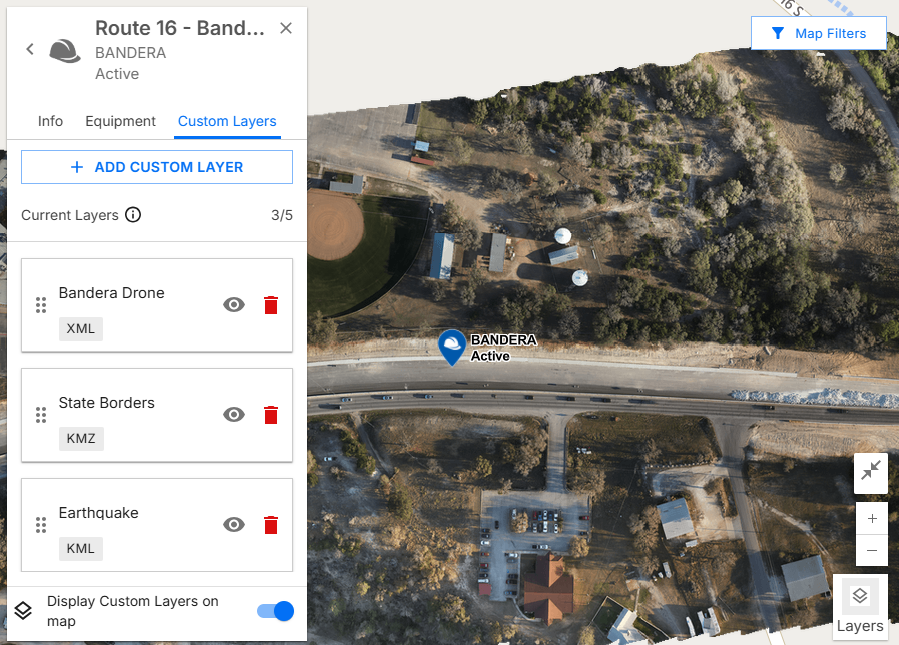
Map View just got a serious upgrade. You can now link outside map sources, including drone tile servers like Propeller, directly into Map View, so your team can pull up up-to-date aerial imagery and reference data without ever leaving HeavyJob. No more exporting flight data from one platform and re-uploading it into another just to see what a drone flight caught this week.
What this means for you: Your most current site imagery lives right alongside your job data, with nothing to export or re-upload.
HeavyJob: Resource Planner Meets myField
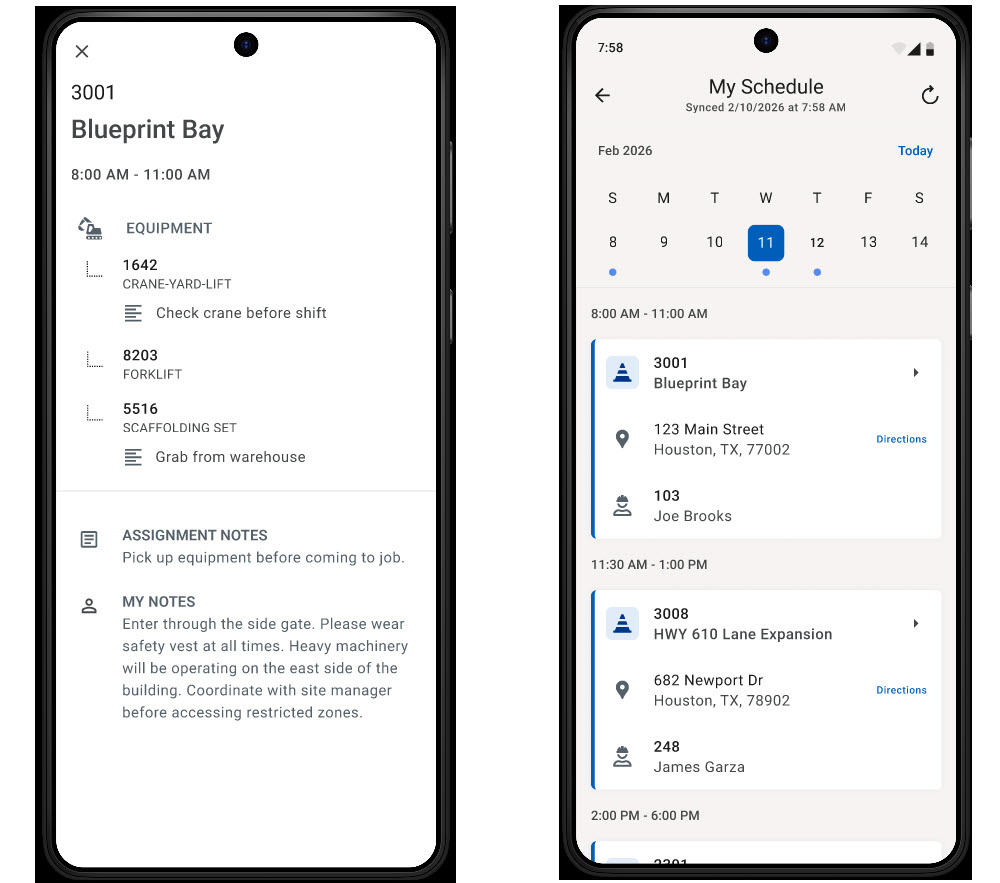
If you use Resource Planner, your laborers now get a new Schedule module in the myField mobile app on iOS. They can check their job and shift times, see the equipment linked to their assignment, and read any notes tied to the job or to them personally, all before they set foot on site. Android support is on the way.
What this means for you: Crews show up already knowing where they’re assigned and what they need, cutting down on morning confusion and phone calls back to the office.
HCSS Fleet: A Fresh Look for Fleet Map
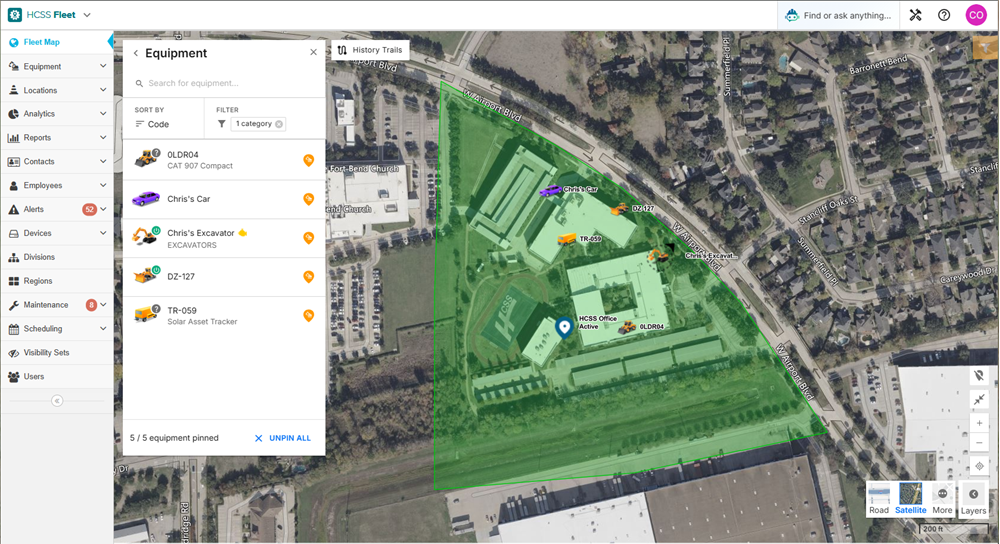
The main page of HCSS Fleet Telematics has a new look this quarter with the redesigned Fleet Map. It's built on the same workflows you already rely on for tracking location, status, and machine data, just faster to load and easier to navigate, so the view you check every day is quicker to scan and simpler to work in.
What this means for you: A clearer, faster view of every machine's location and status, without having to relearn the tools you use every day.
The Bigger Picture
Across HeavyBid, HeavyJob, and HCSS Fleet, this quarter’s updates share a common thread: less manual work and better visibility, wherever your team feels it most. From smarter quote pricing to real-time drone imagery in the field, the 2026 Summer Release is about giving contractors back time so your crews can focus on what they do best: building.
It’s the same commitment that’s shaped HCSS software for 40 years, solutions built with the people who use them, for the way construction actually gets done.
Alright. It looks like we are at 10 AM Central, so we're gonna go ahead and kick this off. My name's Reed Renfrow. I'm the product marketing manager for our HeavyJob products, lead the product marketing team. Really excited to have you all here today to go over all the items we're we're gonna be releasing for our Summer 2026 product release. As a reminder, the actual product release will be next Thursday. So one week from today is when you should see all of these updates in the software. We have a number of members from our product team that are gonna go over everything that you're going to see. As always, if you do have questions about any of the items that are being talked about, please use the Q and A feature, ask the questions. We should have a little bit of time for live questions, but we have a number of people on the product team, both here and backstage that can help answer your questions. So don't feel don't don't hesitate to to ask any questions that you have. And we're really excited you're all here. Today, we are starting with our fleet products. So without further ado, I'm gonna turn it over to Chris O'Connor, and he's gonna go over some of our exciting updates in telematics. So, Chris, feel free to take it away. Thanks, Reed. For those of y'all who don't know me, my name is Chris O'Connor. I'm the senior technical product manager for HCSS Fleet Telematics. And this quarter, we have a pretty big UI update coming with our map redesign. So took a lot of inspiration from our mobile work and working with operations on their operations map and and integrated that into Fleet with new workflows and just more information on a single page. So next Thursday, what you'll see on the site is no more no longer having two maps on your menu there. You'll have a single map single fully featured map with new workflows and updated design. And what it'll look like, you'll have, again, a lot more information that you're used to but just in one place so you don't have to click around as much. So you'll have your same equipment list but with more information on it showing your ignition statuses, potential fault codes, as well as in the equipment details itself, you'll have a lot more detailed information with engine hours, region, fuel, DEF, depending on what information we're getting from the equipment, as well as all the details about the equipment. And a big change as well is instead of going to a different page, when you click, say, Chris's excavator at the top there, it'll open a new tab so you won't lose any of your map information there when you click over. We have also updated a lot of the layering system. So, again, more of the same but in a better, more familiar way if you've used other mapping products like Google Maps. So we still have our traffic and weather layers, road and satellite, and then you can turn toggle any map elements you want depending on how you wanna see it. And then, of course, as I mentioned, without having two maps that have different features on them, we've added our updated history trails to this as well. So if you're using the old, the original map page, we have a history trails feature on there that is a little, you know, kinda long in the tooth. It's been updated since, but we can see we have more details here. You can see, you know, triggered alerts on the trails itself, all your events, and it's more user friendly to kinda click around to find out where things happened or or, you know, dial in on a day for a piece of equipment. And there is some user persistence on there as well with remembering what you've clicked last time, and we're adding on to that in the future with with more kind of what you've done on the map and so you can remember when you come back and have the same information so you don't have to re pin things as as often. And then adding to our list of OEMs, we we added in my case. So for those familiar, we had case site watch added towards the end of last year that got moved into my case construction. We integrate with that with CNH as a whole. So from their ag side, we have their agricultural stuff with Case Tractors and International Harvester as well as their construction side with MyCase Construction and New Holland Construction should work through the same provider as well. So that's kind of it for telematics. I'll go ahead and hand it off to Hayden for an update on the fleet maintenance platform. Thanks, Chris. My name is Hayden Price. I am the product manager over fleet maintenance products at HCSS, so our web based fleet maintenance product as well as Equipment360. So let's go ahead and hop into what's new on the fleet maintenance side. So in HCSS Fleet Mobile, we added photo and document capabilities. Whether or not you're using fleet maintenance in the web, hopefully, you're aware by now you can upload documents and photos to telematics. And the HCSS Fleet mobile app now supports those. It syncs those. We can add and remove those photos from the mobile device right in our equipment details, as you can see. On the Fleet maintenance website, we added actually our first Excel import into any of the telematics or or or fleet modules, and we started off with the PM service import. So as you can see here in this this video, I'm kinda clicking through importing some new services and getting those spun up for my crane equipment class. There are two separate imports here, one for actually configuring and setting up the PM services and one for actually initializing each service by each particular asset. And last but not least, on the fleet maintenance side, we have our first cost report. If you are here for the last quarterly webinar, you saw you saw our work order expenses feature where we could upload and and key in vendor or parts costs into our reference numbers, upload receipts, etcetera. So we actually have our first cost report in fleet maintenance, which is reporting on those assets. So super exciting stuff. On the Equipment360 side, few quality of life updates here for you. This is kind of the big one. So assigned drivers, we did a couple things here. One, we have the option to actually sync this field with HCSS Telematics. We had an assigned driver field kinda in both products. They did not sync. So there are a couple preferences. One, to be able to pull down and push up assign driver assignments to and from HCSS Telematics. If you're familiar with that field on our equipment details also, it is now a drop down list, meaning you will select and map an actual employee record rather than having to type something in. And if you're doing this in telematics, there is the option to just go ahead and create the employee when we sync it down so it doesn't have to exist in Equipment360. The other part of this story, though, besides actually syncing that and being able to map that employee record, is the ability to send alerts to our assigned drivers. So in our personal alert setup, on the PM alerts as well as the certain license alerts, we have the option to send those alerts, so SMS or email, directly to the drivers. So they have an over the road truck that they use every single day. They can get those PM alerts. They can get cert license alerts just like anybody else that you would set up in the 360 system. As I mentioned, couple more quality of life things. Copy work orders. This is the new feature, new button in work order detail on Equipment360 manager. Essentially, what it's letting us doing letting us do here, I'm sorry, is use a work order as a template, and I can quickly copy that to other assets. So you see that copy button near the top left that that I'm pointing to. That'll that'll open up this modal, and we can actually select other pieces of equipment to open up work orders for using that original work order as a template. On that modal there, we have a lot of options to be able to filter. So if we need to filter down to that particular asset class or that type of over the road truck, and maybe we have a recall open for those, we'll be able to mass select those assets. And then we also have those copy options within this model. Let's say, these are the pieces of information that I wanna copy into these new work orders. So the description is always gonna come over. But if we wanna copy over tags, maybe we have a recall tag. Maybe we want to prepopulate the working item code. We have the option to actually select all of that and open up new work orders in bulk. Pretty related to that story, we did also add the option to batch assigned work orders in our work order search view. I know most of you probably use this view, and, hopefully, you were aware of that batch status change so I can go in and and update multiple work orders to close their work order in in one fell swoop. Same functionality here. So with the in work order search, we can go in, we can multi select, we can hit that batch assign work orders button, and we can actually assign out many work orders to mechanics in one workflow. And this kinda ties in with the copy work order function, you know, thinking of projects such as recalls or maybe we we're relogoing our equipment and we open up a bunch of work orders, we have the opportunity to also bulk assign those. And I may not have mentioned on that copy workers function, you already have the option to copy assignments, but this just gives us another avenue for maybe work orders that have already been opened that we need to mass edit and either assign work orders or clear the assignment. But that is it for me. I am handing it over to Paul to talk through HeavyBid. Thank you. Good morning, everybody. My name is Paul Lambert. I am the technical product manager for quotes and proposals inside HeavyBid. We are going to start it off with HeavyBid preconstruction. First big change was the attachment enhancements. So this is inside project details. We have moved over to a an improved version of attachments, that is getting rolled out through different products. This has a higher upload, limit for you, so you don't have to worry about splitting up documents and trying to upload upload it that way. It also includes a preview that was not previously there. For anybody who has attachments in any of their projects, we have gone ahead and duplicated those over for you. So you will have this new version, but we are still keeping the old one at least for now. So if you want to see it in the previous attachments area, you'll still be able to, but you will also have the additional functionality from this new attachments area. The other big one is estimating totals preview panel. So this is the ability to look at what is contributing from your different estimates into a particular project. Now, of having to go into project details for every single one, we're rolling up a couple of the different metrics from them. So in this case, we have the bid total, total cost, labor hours and labor cost that are shown, as well as which estimates are contributing to those totals. Inside project details, you can toggle which of the estimates that are attached to a project are contributing here. So if you have five different estimates attached to one project, but you only want to see the totals from two of them, that's also possible. And this works for both desktop estimates and for web estimates. Switching over to HeavyBid releases. First one we have is extracting resources and adding in overrides for the export to accounting and handoff to HeavyJob. So you can now assign cost codes to individual resources and extract those cost codes from base activities with the custom descriptions for them. And when you're getting ready to move it over to the ERP for accounting, you can add in individual overrides as well, making it a little bit easier and faster to get that export exactly how it needs to be as part of the handoff process between HeavyBid and these other products. We've also added in the ultimate undo button. We have a lot of requests obviously coming from desktop on the ability to undo. We've added in the ability to revert to a prior state. So if you go through and make one hundred different changes, you can still use the undo. Obviously, are limitations on that making meaning that you can only do it from the same page. If you want to go back further than that, we've added in this revert to a prior state. So you can go through your audit log, find any previous state that exists within the estimate and revert back to that version, as you can see showing right now. This will start essentially a new branch for you. So if you go back in time, if you want to go forward, you're going to have to revert to what would be the second one on this list. There's no undoing or like redoing your undo. You just undo back to whatever state you want. And we're going to be keeping track of that all the way down. So at any point, any change that you've made, you can go back and revert to that state, making it a little bit easier to play around with different potentials and then go back and find the one that worked best for you. We've also added in the target bid total. So this allows you to set your desired bid amount, and we're going to keep track of those differences, including while you continue to make changes. So here, if we're setting our desired bid to twenty five million, as I continue to make changes in the bid, I can keep track of that and see what the net difference is on there. This is especially useful when we couple it with the next thing, which is the closing account routine. And this allows us to auto distribute the variance to get it to that target bid that we were just looking at. This happens on a weighted basis, so depending on the size of individual pay items, we will distribute according to that. We've also added in the ability to update labor and equipment rate sets. So if something changes in the middle of you working on a bid, whether that be a labor rate, whether that be union changes, whatever the case is, you can now go in and say, I'd like to update in this case from the Texas twenty twenty four to the Texas twenty twenty six rates. And, you can pull those into your, essentially, local estimate into your system. You can then add in the ability to, update the estimate to use those new labor sets or equipment rate sets. On the quote side, we've added in the ability to filter by geographic filters for vendors. So when you are searching for the vendors that you want to add into your quote folders, you can now narrow that down and say I want it within, for instance, one hundred miles of the location that is set on my project. I can say regardless of the number of miles, I only want to work with people in the same state as my project for this quote folder. And you can view on the map. So we have that black dot being the project location, blue means that the vendor is within the same state, and gray means they are outside of the state. This does also work if you have multiple different offices set for a single company within your contact management. So if I have somebody that has an office or a site in multiple different locations, it will show all of them. And when I start filtering it down, it will assume that I mean per office. So if I have somebody within one hundred miles of me, and they have another office that's six thousand miles away from me, it would just show the hundred miles when I have it that geographic filter set. For anybody who's missed it, we're also adding in AI extracted prices. So this is the ability to upload a document that was sent to you to your quote folder, and we are able to go through that document and pull those prices out for you. So here you can see on screen, we've matched what is in the document to the things that already exist in your quote folder, and we're able to pull those prices for you. And then the little sparkle icon next to the unit price shows you which page of the document those prices came from. This happens everywhere in quotes, so you can see as soon as I've gone in and I've accepted those prices into the quote folder, we do still show this is where it came from making it easier to verify those prices, in case there are any questions down the road. And we also give a confidence rating. This is based on a number of different factors. But basically, the the more similar it is in the quote document that we see to the quote folder, the more confident we are. If the quantity is way off, or if the resource and sorry, the resource code and the description don't match, we're going to be less confident in there. These are also changeable. So if you are getting ready to pull in the prices, we say here are the prices that we're seeing, You can just change it before you accept it or choose not to accept that individual price. Last one for you here today is the new quotes workflow. We got some feedback from a bunch of different users here saying we want to be able to work more closely with the quotes from directly inside the estimate. So these are the changes that we're going to see, which is the ability to view all the different quote folders that exist within the estimate. I can start quoting directly from the estimate now. I no longer need to go over to the quotes tab and start my estimate in there and then come back. And I can do some very, very basic management of quotes within here, such as the ability to combine quote folders. And then on a manager side of things, I'm able to keep track of those changes as they come through. So I can see the selected vendors for the different quote folders, how many vendors are currently in there, what's my plug total, how many resources are in there, and so on. On the HeavyBid side of things, that's all we got. So I will turn it over to Andrew for HeavyJob. Thank you, Paul. Let me go ahead and get to this slide. Andrew Fowler, I'm a group product manager for HeavyJob over here. We're going to go through some exciting releases both for, the HeavyJob Manager system as well as our Docs and Plans solution as well. Let's jump into it. So we already looked at some of the map views work that Chris and his team has done. What we're going to look at today is the map view work that the HeavyJob system has done in order to really bring in your own information inside of this operations map view. So we have a few different ways of doing that. We're what we're really looking at are the different types of files that you can bring in. The technical side of it, really three types, KMZ, KML, and WMTS. Don't worry about the the acronyms there. Just know that those are the typical types of data that you'll get from, say, Google Earth or from other providers like that. But the big one here, bringing in drone imagery into the map view, is that WMTS tile. Think Propeller, DroneDeploy, companies like that. And what you're seeing here on this Bandera project is the actual drone flyover data directly on the map view itself. So up on the top where you see that little jagged edge, that's actually the the limit of where the imagery was doing the the photos. So really great to begin to see your own data directly inside of this map view over here. In addition to that, you can start to upload that own KMZ and KML files that you have. You can look at current site conditions, different pinpoints for different specific, say, safety information, where different things are located all throughout. So that way whenever you open up this map view, you have a very comprehensive, very digestible view of what is actually going on on your job site. This is what the upload looks like. So you'll notice that there's two options here, import from file and import from URL, and then giving it that description as it's going to show up inside of our layers. So import from file, think of just grabbing that KMZ or KML or GeoJSON as well, uploading it inside of that file, and now you have it directly available. This is gonna be very useful if you have information that you wanna keep to yourself that versus something that's publicly available, say, on like an ArcGIS website. And then the only option today for in integrating into the the flyover data is using that URL, and that's gonna be coming in from the drone provider itself. They'll they will provide that URL, and you can upload it directly inside of this now having access to the the flyover data directly inside this map view. Alright. Next big one here. We've been working a lot with, really across the the ecosystem between HeavyJob and and Fleet specifically on bringing together our equipment types to make sure that everything does stay in sync. And so this is a really big one for any of you that do have these two different systems to keep all of your data within the the same the same system, allowing you to do filtering and other things that are very important inside of both HeavyJob and inside of Fleet. So if you have ever had to do an upload between the two systems, there was a double entry that you need to occur. This is no longer the case. It's a single upload, and those are now both available and both staying in sync across the board. In addition to that, we worked with our setup team to in case you there are differences that you need do, how to how to maintain the syncing between the associated products, which we will hop over here. So within the the menu, we have the option to go in and select that equipment type, upload it there. You can change the integration which which products it goes to integrate to. And then for anybody that does work with our APIs in order to get this information into HeavyJob, into Fleet via via your own solution, you can we will be developing those APIs very soon in order for you to use those and no longer have to worry about multiple APIs to hit to get that data up. This one here, for those of you that do have, say, thousands and thousands of jobs inside of our system, This is an exciting one for us because we've really redeveloped from the the bottom up how we're displaying all this information inside of our job list. And so now it goes from taking quite a while to load, if you've noticed that in the past, to being it very snappy, very fast to load, almost instant, you could say. In addition to that, all of the sorting and filtering and finding jobs, just almost instantaneous, if I can say that. But we've looked at the speeds and it's up to twelve times faster. So really exciting improvements across the board. And just getting that ability to see all of your information in one place and to filter it, do the modifications that you need to. We can see in the image here that we're doing some modifications and just allowing you to do everything you need within that setup view. Now you will notice in that upper right hand corner, there's that classic to beta switcher. So if you do still need to look at the old view or you're very comfortable with the old view and that's what you prefer, you can go ahead and switch to that in order to get your information done and very quickly get get your work that you need to do out. Just letting you know that eventually we will be switching over to just this view, so, that ability to switch back and forth is a temporary measure just to make sure that it's new. We don't wanna scare you. We wanna make sure that you can do your work, but this will be the the new way to look at it. Alright. And this one is another very exciting one for us. For those of you doing our export inside of HCSS.com, this is the ability to do multiple and or solutions inside of the override rules. So what we can see in just walking you through this example, we have when the job code is empty and this and this, allowing you to create these various rules to very specifically say, this is when this is the only time that this override is going to happen, making it where you don't have to stack as much and you can just really get a lot of information directly inside of one view. So when we we started looking at this, if you deal with a union, if you deal with a specific multiple different labor types and different labor rules, this is where this is gonna come in really handy versus having to split that payroll work across multiple exports, which was the recommended way of saying to do it in the past, doing a filter and then an export. And now really you can modify your rules in order to have these overrides in place. So that way, you do a single export and have all your information in one So this has been a a hugely requested one from our customers, hugely requested from our implementers as well. So we're very excited to get this one rolled out. Alright. And moving over to our HCSS myField. This one's pretty exciting. This is integrating into our HeavyJob Resource Planner. Where that schedule was developed and put in place inside of Resource Planner, now the ability to send that into myField and for the individual employees to view that and see what's going on here. So we can see here, this is my schedule, so it's for that individual employee. It's going to show where they're supposed to go. We can see this is a multi job schedule, so there's a specific schedule for eight to eleven, eleven thirty to one, two to six, etcetera. The address for where they're supposed to go, any notes from that job. So we can see for the scaffolding set, which we grabbed from the warehouse and check crane before shift, any other notes to add in, any other assignment notes, all this information coming in from Resource Planner into HCSS myField, just giving you the ability to, as the employee, to see exactly what you're supposed be doing for the day. So really good integration here. So that way they know exactly what they're supposed to be, where they're supposed to show up, and even who the crew lead is there with Joe Brooks in this case if they are shifting crews from time to time. And big note on this one, releasing on iOS q three, and Android's coming very soon after. We're working on that Android side to get there as well. But just letting you know that you might see a staggered release, and whenever we get that I Android version out, we'll you know within our monthly webinars as well. All right. And then I will hand it over to myself again, and we'll continue with Docs and Plans. All right. Those some of you have seen this new project dashboard already, so this is what we will be seeing inside of our Docs and Plans view from here on out. This one is going to have a lot more work put into it, but really what we can give you today is just a nice new look and feel and the ability to really understand what's going on with your docs, with your plans, with your projects. So big thing here, if we look across the side on the left-hand nav there, we've moved over the the folder structure into that. So you now have the ability to see your favorites at the top. So you're pinning those to the top now. Your asphalt paving, pavement marking and site preparation, those are all of your various projects that you've set up and then the status of what's going on there. We can see we have some archived projects. We have some that are started and favored already. But overall, just creating this very nice quick view in order to filter through and see your projects very quickly, ability to search up there in the project name, ability to do some more sorting and filtering inside of there, and then, of course, displaying all that data inside of the main section there with the ability to add project groups and add projects and just do really everything that you could do before but a little bit better, a little bit easier to do. And of course, continuing, like I said, to add in more function, more details, more information into this screen, because what we found is that our old, dashboard view inside of our Docs and Plans, solution really wasn't, telling you everything you needed to do, so we've got a lot more opportunities here to tell you everything that you need about your projects. Last one here for Docs and Plans. We spent a lot of time throughout this process of listening to you, listening to the issues that you had with project creation, sometimes uploading larger plan sets and what would happen when they would fail and a support call that would have to happen in order to resolve that. So as part of rolling out this new front end solution, we didn't want to have you running into those same issues as what you're running through in the past. So we also spent a lot of time on what we're doing to process that information, to get it into Docs and Plans, and to make it available as soon as possible for the foreman in the field, for anybody that needs to access those plan sheets. So, yeah, I think the slides say it all. The plans are uploaded right the first time since we've rolled this out. Haven't really seen any more failures like we were seeing in the past, and it's much more reliable, much more faster, which we know they're all all great things for you. And then, of course, less waiting times means less headaches for the office. We typically recommend this as a a coffee break upload. So go and grab a cup of coffee whenever you do this upload. Don't ever really have to worry about that anymore. It's a lot much faster, a lot more reliable in what we're getting out of this admin project. Alright. And then on the iOS side, big announcement here. In the past, you've had to download the Plans iOS application. And whenever you press that plan sheet option, it would actually redirect you to the other application. We've now put them all inside the exact same application, the HeavyJob app on iOS. So that way, it's a single download for your foreman. It's a single access to all of your information and all of your plan sheets, maps, everything that you've been used to in the Plans iOS application is now available here in the HeavyJob doc in the HeavyJob application as well. So it makes it very easy, available on iPhone as well, just like it was in the past. But really just the big story of getting it all in one place. That way it's a single download and all your access and all your information is in one single spot. Alright. And with that, I will conclude and hand it over to Gaston. Cool. Awesome. Hey. I'm Gaston, technical product manager for safety. And I'm just gonna talk about one main thing today, but I think it's a really cool thing, and that's JHAs. So we have if you've been coming to some of the past few webinars, we have a couple of times mentioned that we're gonna let you start customizing your JHA layouts in the main sections and the order of those sections inside the JHA form whenever you're filling those out in the field. And so right after our last quarterly webinar about three months ago, we put this into beta testing, and huge thank you to those who have been beta testing this and giving us feedback. That's been very, very helpful. So thank you for that. And, Mike, if you're in here, your last suggestion is being built, just so you know. By the way, guys, if you wanna beta test things when we ask for it, you get to have your suggestions sometimes to get in there before before the thing comes out. So pretty cool. So but what we're gonna let you do here, you can see kind of in the the moving little GIF here. You're gonna see all the main sections of the form, you know, and you can go rename those. So things like primary hazards, if you wanna call that sticky, you can change that. If you wanna put it in a different order, you can do that. If you wanna turn on the risk assessment code for your format for all your formats, you can do that. You only wanna have one format, one layout active, you can turn off the other one. You wanna turn off signatures in the summary, you can do that because you want people to sign the meeting. We're trying to give you just a a bit of flexibility here to match how you'd actually like people to work in the field to the to the form itself or match the form to how you'd like people to work in the field. So as this is getting ready to come out, there are a couple of things I wanna The first one is we really are trying to make this so that when it releases on Thursday next week, you don't really notice out in the field. You're gonna have a new menu option here in your setup in safety manager for field layouts. In the field though, it all all of our options and names that are now gonna be dynamically matching whatever is setup in field layouts, the defaults are all what they currently are out in the field. So you shouldn't really notice a difference. The only difference anyone will notice is right now in the system, you have two formats which are JHA and So in the field, whenever they go to pick between formats, they're now gonna be called default NDHA. And if you wanna change it back to JHA, then you certainly can. Just go here in the field layouts and and change that name. And I'll also note that you're going to be able to choose what shows on your PDFs based on these layouts versus your JHA module name and description. So whenever you're you're filling out new JHAs, you'll be able to choose here in these settings whether you want the name or description or both of your actual layout to show on your PDFs or if you want the main module name for your whole system to show on your PDFs. And you'll be able to choose that for each layout whenever they get used. And then lastly, the the main pages here are coming out on Thursday. We actually have some smaller changes. They're gonna start trickling out over time shortly after that. So things like being able to create additional layouts, being able to assign them to job tags so that the person out in the field will automatically have the correct layout selected based on your either a job you've selected or on job tags that you've selected. Being able to assign them to to one or more specific business units. So we've just got some some improvements that are gonna keep coming out over the next few weeks, and and I'm pretty excited about those as well. And then I'll give a quick teaser. We have another major part of this coming where you'll be able to eventually even have even more customization. And we'll probably talk about that in the coming webinar here soon, so make sure you attend and I'll I'll show those off and we'll be looking for beta testers for some future things with that as well. And with that, I think that covers the field layouts. Be watching for your questions. So feel free to to shoot those over and I'll answer. And I'm gonna hand this off to Colby who's gonna talk about some cool other stuff coming out in the mobile app. Yeah. Hey, guys. Thanks, Gaston. As Gaston mentioned, my name is Colby. I'm a technical product man in safety skills and forms. And so I'm just real quickly gonna go over, I know we've talked about it a few times the last couple of webinars, but the meetings revamp is very close to being released for iOS. So I wanted to give you guys a brief overview. Like I said, I know we went over it before, but this is gonna be just going over a couple of the main things that are gonna change. And then in addition to that, we'll have a link to download that walkthrough PDF guide that we had available last time. So without further ado, meetings revamp for iOS. One of the main things that's gonna change is we're now gonna have a hold meeting button within the meetings details screen, which is going to show your users the selected subjects with their attachments. They'll be able to edit the attachments of course, and then view the different attachments. If there are multiple attachments to one subject, you'll be able to scroll through those as you can see there in that little picker. In addition to that, we're going to have a separate place for your agenda and attendees versus your notes, photos, and attachments. So the agenda and attendees will be the main focus at first. And then we'll have a secondary window that they can click on to do the notes, photos, and attachments. So gives you more real estate, allows your users to type in more notes to see everything that's available in the meeting, who all they've selected, who's signed, the subjects, but then also still be able to see if they do, you know, robust notes or they have a bunch of photos. They'll be able to see thumbnails and just descriptions. And so hopefully, you know, they have a better glimpse of what all they've input in the meeting and if they're missing anything from subjects or attachments. And then kind of one of the last but one features that we're gonna discuss is the review modal. So the review when they click review and send on the meeting, it's gonna pop up this little modal. And what this will do is kind of give them an overview of their meeting. Make sure that you know that they have everything filled up that they wanna fill out before they send it. So if there's something that's required for the meeting to be sent, it's gonna show up there at the top under missing items and it's gonna be marked red. So it gives it right in their face says, hey, you need to fill this out before sending. And then the send button will also be grayed out until that's done. This workflow will also encourage our users to fill it out with the intended workflow. So if they click add on some of these things to the main screen to fill those out so that they get in the habit of filling it out during the meeting rather than just trying to fill it out here in the review meeting screen. And then we've also built this in mind with the additional future preferences of allowing different requirements for meetings. So, you know, in the future we're looking to build customizable requirements. So maybe you require a duration, but you do wanna require signatures. This is made with that in mind, with that in the future because the missing items is going to be a very dynamic part of the screen. So if something is missing, but they haven't heard, if something needs to be filled out, but it's not missing, it comes off to that window and appears down below in the meeting's details. And so it's very dynamic in a way that it will show what's missing versus not. And then those preferences eventually will allow those items to be fed up to that missing item section as well. That's pretty much it for HeavyJob I believe. Like I said, we're gonna get that link sent out to you guys for the walkthrough PDF guide. Feel free to download it from there and get your users ready before this releases in the coming weeks. And then outside of that, I think that's all for HeavyJob. So we're gonna move on to platform and I'm gonna hand it over to Harry to talk about insights. Yep. Thank you, Colby. So I'm Harry White. I'm the technical product manager of HCSS Insights and Direct Access. And for this month's quarterly release, we're really excited to announce that we're massively improving the functionality of tags within HCSS Insights, and we're starting with job tags. So for those of you who have used Insights, y'all are likely familiar with some of the difficulties in working with tags. And with tags being one of the main ways that our products groups data together, we are now improving the functionality. So what that means is that we are releasing new fields to the data model and new company settings that allows you as a user to declare what tag groups you want to have powering these fields. And once that's done, you are then able to present the tags in line with the resource that they are attached to. And then most importantly, you're able to group data such as revenue and cost to these tags to get, like, a really broad overview to see how these different groupings of jobs, whether it be product manager, private or public, or the type of work are performing for your company. So this release is on the fifteenth, and we're really excited for this. But with that, I'll hand it over to Rohan. Hey, everyone. My name is Rohan. I'm the technical product manager, really for a lot of the platform credentials, permissions, setups, a lot of the core services. And, yeah, last webinar came on here and we said that safety permissions was going in g going GA or going in beta. And this one, I'm excited to announce that we went GA actually in late May. And so you guys will all see this, safety, option under groups. Everything will show up as expected within safety, if your safety manager is, like, looking at permissions and things like that. But this will make it a lot easier for your IT users when they're onboarding different users and setting access to be able to do it straight from credentials. I am also excited to announce we are working on HeavyJob. We are wrapping that work up this quarter, and we are hoping to go to beta actually in late August, early September. So be on the lookout for that. I'll email the same people who showed interest in the safety permissions beta, but definitely shoot me an email if you're interested in the HeavyJob beta, and I can I can put you on the list for that? One thing, I think I may have talked about this before, but we have set up spoke endpoints now. And so as you can see, currently, they are in beta. We are more than likely going to remove this beta tag and do some shuffling of how this looks in the developer portal this month. And so it will be GA later this month. And so for those of you guys who struggle with rate limits on your APIs, these APIs now in a single call handled up to ten thousand employee equipment or location records. And so this will greatly help your calls per minute. It syncs directly with your ERP. And obviously, we have all the information the developer portal if it's and it's free to use. Or if you want the manage integration support from HCSS, definitely reach out to your sales account rep and and get that taken care of. That's all I had. I did have one thing actually that just came off hot off the press this morning, and so I didn't get into the slideshow. But a lot of you guys have reached out to me around setting job access for inactive jobs. Currently, way to do that was to just set all job access for your user. We are rolling out next week the ability to set inactive jobs through select selected jobs and credentials. And so, if anyone's interested in that, please reach out to me, and I can get you guys more information on that in in a little one pager as well. Thank you, Rohan. Set. Yeah. I think we have we do have a few minutes, for q and a here. If anyone has any questions about any of the items that we covered today, I know we've been answering questions as we go, but feel free to jump in and ask any questions now. I know we have a couple. I can I can read them off and we can get some answers? First, Sarah asked, in in setups, we need a field for manager and division at the employee level to filter skills and safety across the company and not enough filter options. I don't know if that's something we already have in the backlog we can add in. So the there there's this raises a question for me, and that's that I'm wondering if this is something only needed in skills and safety because the the skills and safety use case makes sense. But then I'm wondering, do we need that in other places as well? And that might be more of an internal like, if we we understand that need a little better, that might spark some more internal discussion over here on the HCSS side as a platform because I don't wanna speak for Rohan on whether that would make sense across all of the other products, you know, to have that. But that that's kind of my question. So I have probably more questions than answers on that right now. But, Sarah, I think your your need to be able to filter and quickly see by division, say, who has certain skills or or some other manager or whatever field you need to be able to kind of subdivide those. I think that makes sense at the skills place. Just a question of whether it also would be the exact same kind of field you would use in other products or other parts of the platform is my question. Alright. Another another question from Sarah was if safety web manager be able to see what users have safety field rather than just who has safety web. Don't have access to credentials. So that's not something on the roadmap right now, but it's an interesting question. I wonder what is it that you want those safety web managers to be able to do with that information? You needing them to be able to control who has access or just know who has access? Because I feel like those might be a little bit different. So once again, sorry. More questions than answers on that one. But I I think that's what I'd be looking to see is what do you want them to be able to do with that act that access to be able to see who has mobile versus who has web. K. We have a question from Rocky that just a a brief agenda of what was covered. We had, really, it's our quarterly release, so we had some updates for our fleet and our map. We had some Equipment360 updates. We went over HeavyJob updates, HeavyJob Docs and Plans, some safety. We finished off with platform. As a reminder, you go to webinars.HCSS.com, and we'll post the recordings there. Anyone registered for this will also get an email with a link to the recording. So if you miss it, you you're you'll be able you'll have access to the recording to go back and see anything that you missed or send them send that to anyone on your team that you think this would be valuable for. Alright. We we did have a previous question from Diane about wearing HeavyJob. Andrew was showing the uploaded drone imagery. I was gonna do a quick walk through of those steps just because it's a little tricky to explain in text. I sent her a message, but Sure. Share my screen real quick here. Okay. Alright. So for Diane and any of the other folks that are looking for this feature in map view, I'm here on the platform section within credentials. I wanted to start here just to kinda show the drop down and how to get over to the operations side just in case you have access to estimating fleet, other things too. That way, you know where to look for just in case you don't have access to it. So once I go to that drop down and go to the HeavyJob side, which contains all my operations, the map icon will be right here. If you want this to be your default landing page, there is an option to do that as well over just under the the icon in the upper right. You can set your start page as a map view or any of these other great pages just depending on, you know, what's most useful for you when you open HeavyJob. So I've got mine set up for the map so it hops to it already, but otherwise, you'd go to this icon here right next to the HeavyJob drop down. And then once you focus into a job, you should be able to see the custom layers section here. So for this Bandera job, you can see I've got my drone tile server set up automatically. So that way, you know, I've got my live updates there, but you can also add other KMZ or KML files up to five there and toggle on and off from that custom layer section. So once again, go to the map, select a job to focus into, and then for any of the jobs, you should have that custom layers section there and the ability to add those or toggle those on and off, change the order, all of that fun stuff. Right. Thank you for running through that, John. A feature request is, could we return Production Planner to HeavyJob web and not just merely have it in the field? I think I know we've I think that's on the backlog. I think I've seen it there. Yeah. We continue to evaluate that one as it comes up. Know it's something that we do want to get there. And we've put together different approaches for what it may look like and really just figuring out really how to operate with Resource Planner and what that would look like to have that sort of feature in one or the other is where we're at today. All right. Another question. We could really utilize a filter and time cards and payroll based on admin review or manager approval. Will that ever be an option? Yeah, so you're just looking to filter down to the approver. So we'd have to assign that somewhere. We have a field, used to Yeah. We'll we'll have to evaluate that one. I there'd be some other work to do it, and then, like, who's maintaining that list of of approvers, but definitely something we can look into. Great. Yeah. And if you're not looking for a specific approver, you're just looking for, like, the approved status, you can click on the filter section in the upper right of time cards and scroll down to the status section. And that way you can say, okay. I just wanna see the ones that have been accepted or reviewed or approved if you do have those three levels of approval there. Alright. With the changes in equipment types and HeavyJob, now as subtypes where Equipment360 had the prior, HeavyJob can those types be made to use on the rate tables, both cost and billing tables, so one could use major type and minor type for standard rates by type and subtype instead of individual rates. That's a complex question. Yeah. No, but it makes sense though. Yeah, I figured it. We'd love to get there. We've worked with customers on right now is importing and exporting that. And so it does make it easier now to have the equipment types in that export in order to then update your rates and then import them back in. So that's what we would suggest to do today. We do love that idea and we understand that that's with the individual equipment rates, that's the solution today. But it's something that we absolutely love that idea of. TNA rates especially. All right. The question from Jason will answer. Any new functionality or features related to HCSS HCSS AI Copilot? Not for this summer release. I will say we have a number of teams hard at work on building a lot of cool new features. They're you will see them very soon. So more of just a preview and a tease. There there's a lot of work happening by by people on this call, by our development team, and we're really excited about the things we're seeing. So I would say in the next in the fall release and, like, throughout the rest of this year, you will see a lot of exciting updates coming out around AI. Reid, I would like say one thing. It's what we talked about yesterday around if you guys are subscribers or look at our updates page, one small change to that functionality is the ability to ask our AI chat bot about, hey. You can in a few weeks, not for the summer release next week probably, but probably a week after. So you'll be able to ask it, hey. What was released for HeavyJob over the last few weeks? It'll be able to kinda read through the site and give you a quick answer or any of the products really to get a quick summary of of what's being released and things like that. So that's not anything major. Like Reed said, we're working on a lot of really cool features across all teams embedding into the products and such, but something small I just wanted to mention to help you guys stay on top of what's being released. Alright. I think we have a question from Troy. I think Frank might take this one. HeavyJob bulk import. Can HeavyJob bulk import allow more than two hundred fifty cost codes for unit priced work? Troy, good question. In theory, it's possible. Give us a call. Shoot an email over. Frank, I'll I'll post in the chat. But in the very near future, we're working on essentially giving you a contract to assign your work orders to so that you will not have to set up two hundred and fifty cost codes and pay items on a job. So we'll be giving you a a better solution for that. We'd be happy to go over that with you. Alright. Will there be an option in the future for hybrid companies to have a third slash fourth break option added back to the iPads in myField? Unfortunately, no. As part of the database requirements for the desktop system, it does require that you are on the web only version in order to have those multiple break options. Alright. And then I think for for Harry, we have a question. Can you develop an insights report template for production data for selected cost codes? We use production history and HeavyBid, but it doesn't support looking at the data how we would like to. Yeah. I was looking at that question. I actually have insights open. I think that we might have one out of the box that supports that. In the job summary report, there is a page called the the cost code details that gives a lot of the production data for for the cost codes. So I would probably take a look at that one if it fits your use case. And if not, you could shoot me an email and we could talk about more kind of specifically what you're looking for. Perfect. Alright. I know we're get a few more questions in here. Let's see. Any chance we can get crew hours from a bid to show up in the HeavyJob's cost code setup field? That way we can use our production analysis comparison. Jason, we can reach out to you individually and and talk about that a little bit more. I know we have a lot of I know we have a few more questions coming in, but we are we are almost approaching our one hour mark. So I wanna make sure we respect everyone's time here and and time for our team. Feel free to reach out to to anyone on this call. We're we're always if you have requests, ideas, plea please let us know. You can also reach out to support if you have any of these questions as well. So thank you so much for for joining our webinar today. We're really excited about all the new new features that are coming out next next week. And we will catch you in the fall with our fall release as well. So everyone have a good day. Bye, everybody. Bye.